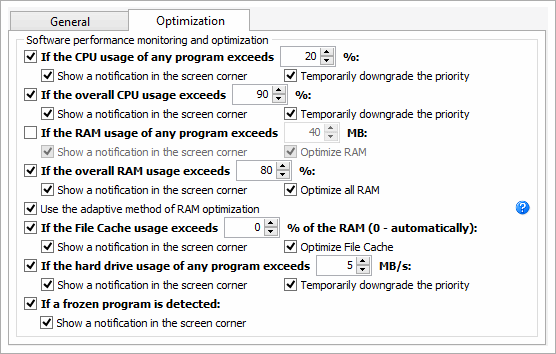
Interface overviewFor information about the Interface, click here.Automatic optimization of computer performance Controlling the settings of every program Quick access to process management Configuration management Automatic optimization of computer performanceChameleon Task Manager automatically makes available the highest possible system resources for the program you are currently working with. This is achieved by temporarily lowering the priority of background programs (It includes automatically lowered I/O and memory priority in Windows Vista/7/8) and freeing up the memory they occupy.The preferences can be used to specify the exact program monitoring options and the actions it should take: Options - Preferences...
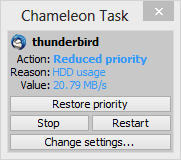
If you enable notifications, a dialog box like this will keep appearing in the left corner of the screen:
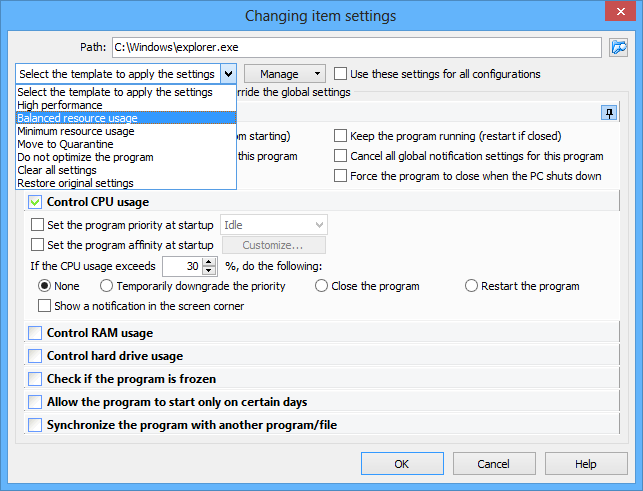
The set of buttons depends on the type of event. Controlling the settings of every programIf necessary, you can specify individual settings for every program. To do this, open the editor with a double click on the program in the list. To quickly change the settings, we recommend that you use settings templates (that you can create yourself).
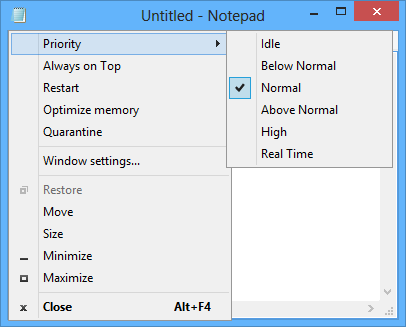
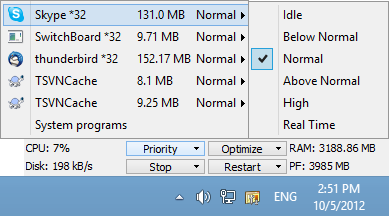
Alternatively, you can click the title of the resource to control and specify its parameters. If you select the "Use these settings for all configurations" checkbox, the program settings will not change no matter what configuration is loaded. Quick access to process managementTo restart or optimize a process or to perform other operations, just open the standard menu of the program title bar:
or move the mouse pointer over the program in the tray:
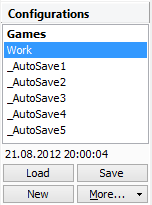
Configuration management
|
| 30-days trial version | Chameleon Task Manager Lite |

Chameleon Task Manager 4.0.0.782 released
Chameleon Task Manager 4.0.0.777 released
Chameleon Task Manager 4.0.0.776 is available
Chameleon Task Manager 4.0.0.775 has been released
Chameleon Task Manager 4.0.0.765 is available
Chameleon Task Manager 4.0.0.760 is available
Chameleon Task Manager 4.0.0.755 is available
Chameleon Task Manager 4.0.0.750 has been released